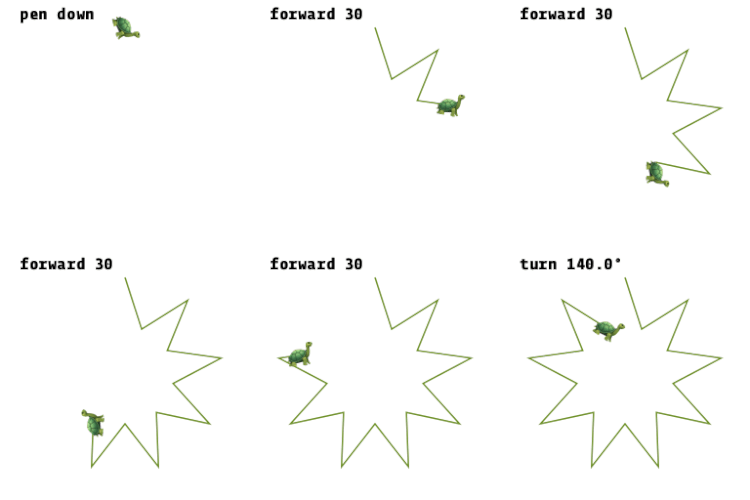

What is Turtle Gadget?

It is a simple drawing system that uses the idea of turtle graphics and is based on the existing Gadget interpreter and graphics library. It was developed specifically for the University of Calgary art class Art 251 - Introduction to Digital Arts.
The original turtle graphics system was Logo, developed in 1967 by Seymour Papert.
"Papert's widely read and highly influential book Mindstorms was published in 1981, just around the time that microcomputers were starting to find their way in to classrooms. The book begins with an affirmation of the importance of making a personal connection with one's own learning and ends with an examination of the social context in which learning occurs. In the intervening chapters, learning in a computer culture is situated in the context of Piaget's work and in the field of artificial intelligence. A significant part of the book is devoted to the idea of a "mathland" – an environment in which people can learn mathematics naturally as they learn to speak their native language without formal instruction. Turtle Geometry is a part of this mathland, a mathematics that is more accessible to young learners than the familiar forms of geometry taught in schools.

An online implementation can be found at https://www.transum.org/software/Logo/
As of November 2025 this system is still under development.
Windows 64 Archive. as of 2025-11-05
Linux 64 Archive.as of 2025-11-05
Blockly is a commonly used turtle graphics system with open source, developed by Google.

Summary

In turtle graphics we use a relative cursor (the "turtle") upon an x-y plane which is 1000 by 1000 pixels in size, the canvas. The turtle has a location, specified as (x,y) integer coordinates, a direction or orientation, which is an angle, and a pen, which can be up or down. A set of commands are used to set these parameters, which allows the turtle to draw on the canvas.


In Turtle Gadget the basic operations are:
pen up: Lift the pen from the canvas.
pen down: Place the pen so it touches the canvas.
The turtle only draws when the pen is down.

forward 10: Move the turtle in the forward direction by 10 spaces (pixels). The number 10 can be replaced in practice with a variable having some integer value.
turn 90: Change the forward direction by +90 degrees (clockwise). The number 90 can be replaced in practice by a variable having a value between 0 and 360 degrees.
turn -90: Change the forward direction by -90 degrees (counter-clockwise). The number -90 can be replaced in practice by a variable having a value between 0 and 360 degrees.


The pen can have a colour, expressed in RGBA components, and a width, in pixels.
stroke 200 0 0: Sets the colour to be used to draw lines to (200,0,0). The numbers can be replaced in practice by variables having integer values between 0 and 255 inclusive. An optional 4th value is the alpha or transparency component, which is 0 for completely trasparent and 255 (the default) for completely opaque.
thickness 6: Sets the thickness of lines to be 6 pixels in this case. The numbers 6 can be replaced in practice by a variables having an integer value.

How to use the system

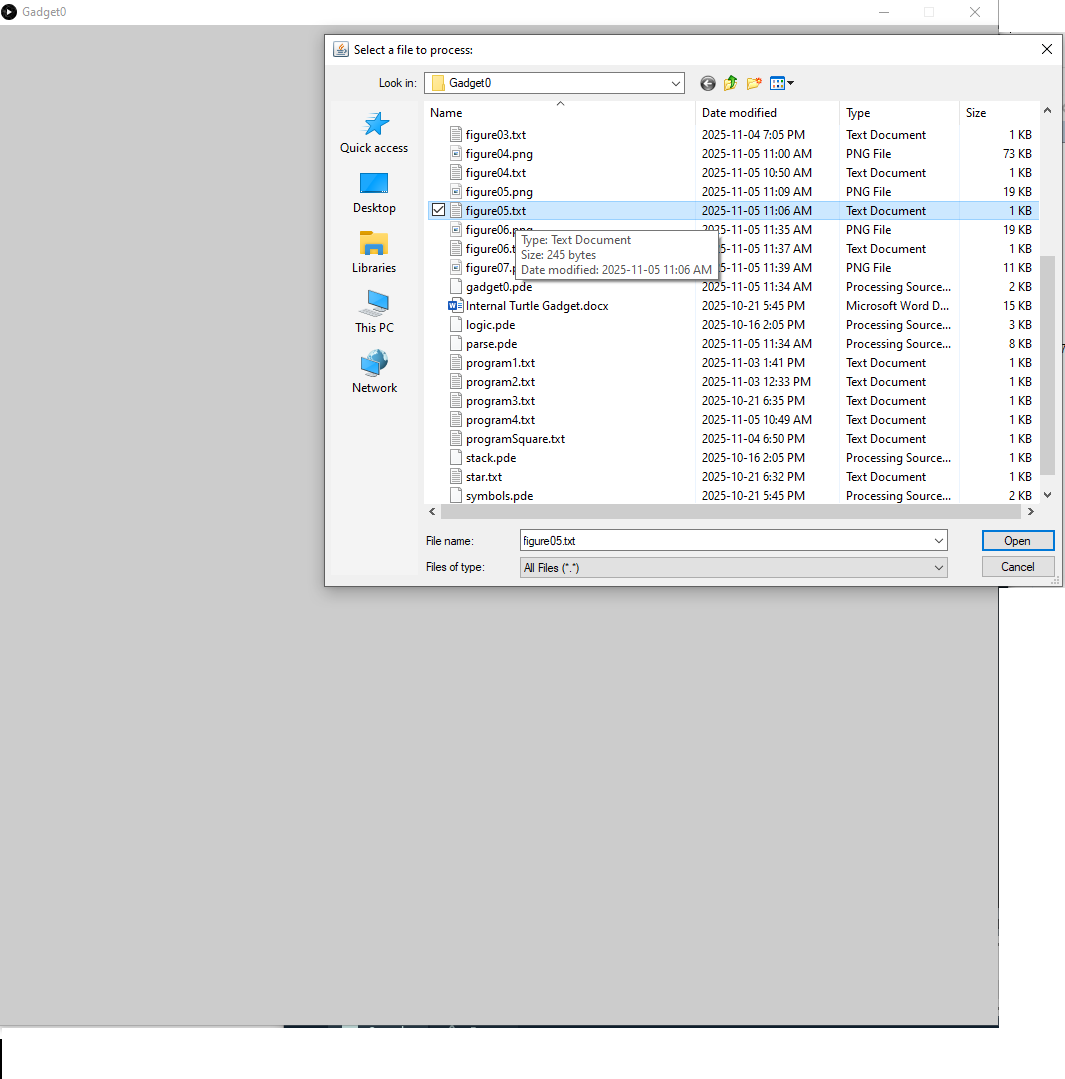
Start the program by clicking of the '.exe' file. You will be asked to select an input file.

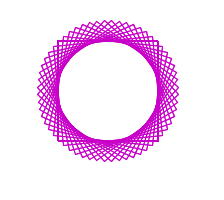
This file will contain the Turtle graphics commands you wish to execute. So the file for example 5 below contains exactly the following text:
stroke 200 0 200
thickness 1
pen down
repeat 30

forward 100
turn 90
forward 100
turn 90
forward 100
turn 90
forward 100
turn 90

penup 
forward 50
turn 90
forward 50
turn 6
forward -50
turn -90
forward -50
pendown

end
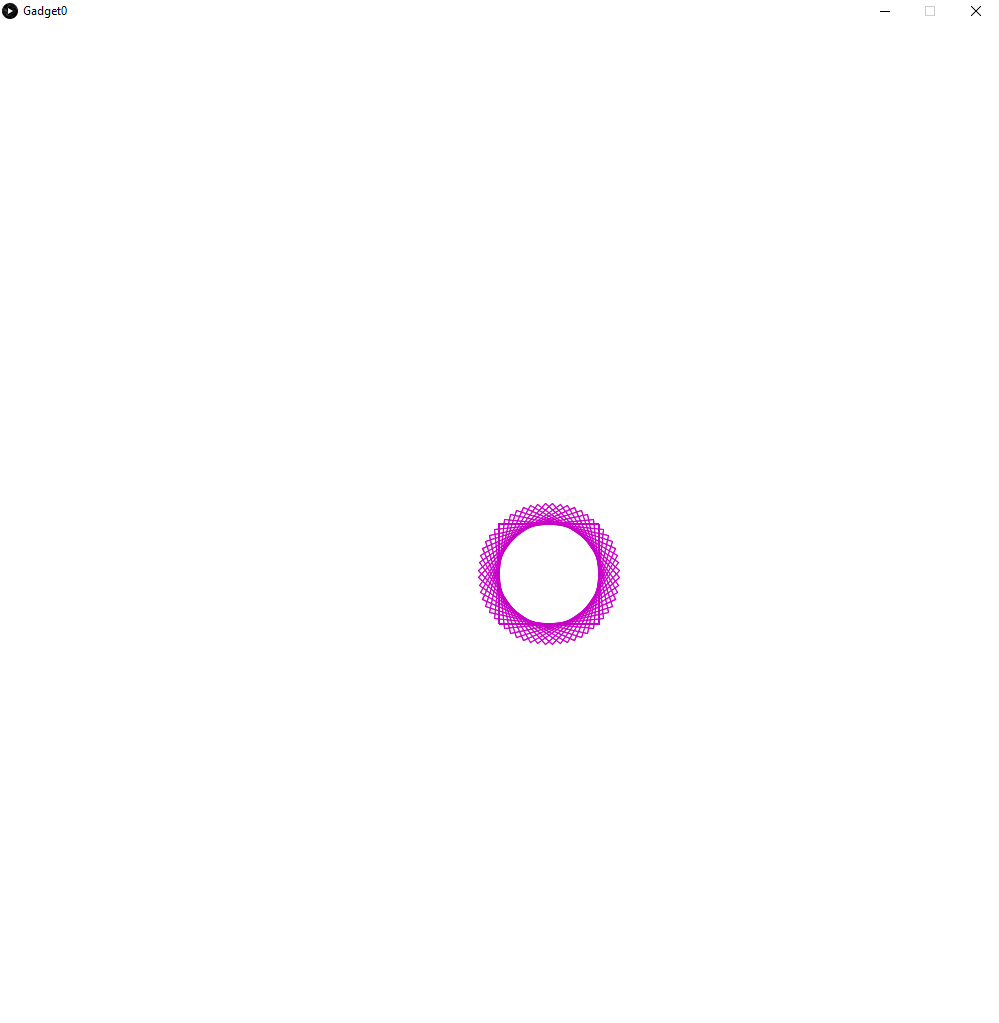
When you click on the file name (figure05.txt in this case) these commands will be read into the system and executed, resulting in a drawing being displayed in the canvas:
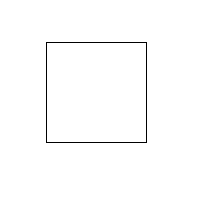
Example 1

Draw a square 100 pixels on a side.
pendown
forward 100
turn 90
forward 100
turn 90
forward 100
turn 90
forward 100

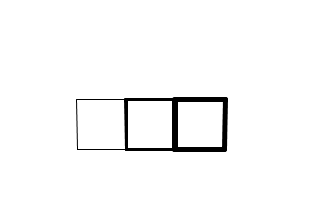
Example 2

Draw 3 squares, each with increasing line width.
pendown
forward 50
turn 90
forward 50
turn 90
forward 50
turn 90
forward 50
turn 90
penup
forward 50
pendown
thickness 3
forward 50
turn 90
forward 50
turn 90
forward 50
turn 90
forward 50
turn 90
penup
forward 50
pendown
thickness 5
forward 50
turn 90
forward 50
turn 90
forward 50
turn 90
forward 50
turn 90
penup
forward 50
pendown

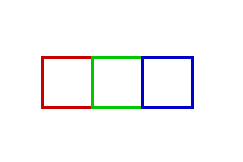
Example 3

Draw 3 squares, each with a different color.
stroke 200 0 0
thickness 3
pendown
forward 50
turn 90
forward 50
turn 90
forward 50
turn 90
forward 50
turn 90
penup
forward 50
pendown
stroke 0 200 0
forward 50
turn 90
forward 50
turn 90
forward 50
turn 90
forward 50
turn 90
penup
forward 50
pendown
stroke 0 0 200
forward 50
turn 90
forward 50
turn 90
forward 50
turn 90
forward 50
turn 90
penup
forward 50
pendown

Advanced Features - Absolute Motion and Drawing

background 100 100 100: Clear the canvas and fill with the color (100,100,100). The numbers can be replaced in practice by variables having integer values between 0 and 255 inclusive.
clear: Clear the canvas and fill with white.
fill 100 100 100: Set the fill color to (100,100,100). The numbers can be replaced in practice by variables having integer values between 0 and 255 inclusive.
pixel 100 100: Set the pixel at (100,100) to the current fill colour. The numbers can be replaced in practice with variables having integer values. There can be a 4th transparency value.
line 10 10 20 20: A draw a line from (10,10) to (20,20) using the current stroke colour. The numbers can be replaced in practice with variables having integer values.
drawto 10 10: Draw a line from the current point to (10,10) using the current stroke colour. The numbers can be replaced in practice with variables having integer values.
drawby 10 10: Draw a line from the current point (x,y) to (x+10,y+10) using the current stroke colour. The numbers can be replaced in practice with variables having integer values.
moveto 100 100: Move to the location (100,100) with the pen in the current state. The numbers can be replaced in practice with variables having integer values.
moveby 100 100: Move from the current location (x,y) to the location (x+100,y+100) with the pen in the current state. The numbers can be replaced in practice with variables having integer values.
circle 100: Draw a circle or radius 100 in the current location and using the current pen parameters. The radius 100 can be replaced in practice with a variable having an integer value.

Advanced Features - Loops, Variables, Conditionals

repeat 100: Repeat a code block 100 times. The number 100 can be replaced in practice with a variable having an integer value. The code to be repeated extends from the repeat command to a corresponding end command.
if x: Execute some code if the value of x is not zero. X is a variable, but could be an integer constant. The code to be executed extends from this if command to the corresponding end.
assign x 100: Assign the value 100 to the variable x. 100 can be replaced by an expression.

Example 4

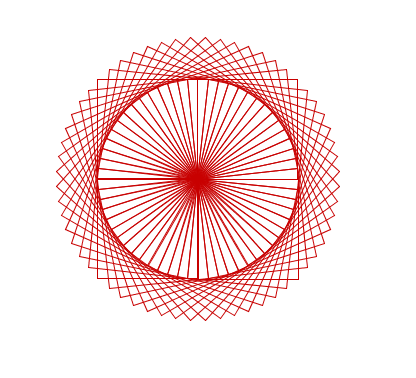
Draw 60 squares, each rotated by 6 degrees about the upper left corner. This code uses the repeat command to execute the same code for drawing a square many times, instead of typing the code 60 times. After drawing each square the forward direction is increased by 6 degrees.
stroke 200 0 0
thickness 1
pen down
repeat 60
forward 100
turn 90
forward 100
turn 90
forward 100
turn 90
forward 100
turn 90
turn 6
pendown
end

Example 5

Draw 30 squares, each rotated by 6 degrees about the centre of the squares. This code uses the repeat command to execute the same code for drawing a square many times, instead of typing the code 60 times. After drawing each square the pen is lifted and the turtle moves to the centre of the square. The square is 100x100 pixels, so the centre is 50 right and 50 down from the upper right and the turtle moves there, totates by 6 degrees, and moves back before drawing the square. This places the centre of rotation at the centre of the square.
stroke 200 0 200
thickness 1
pen down
repeat 30
forward 100
turn 90
forward 100
turn 90
forward 100
turn 90
forward 100
turn 90
penup 
forward 50
turn 90
forward 50
turn 6
forward -50
turn -90
forward -50
pendown
end

Example 6

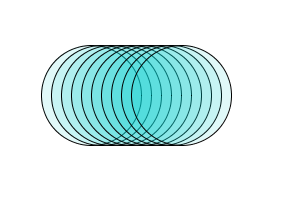
Draw 10 circles, each separated by 10 pixels, having a color with transparency of 30. They overlap so you can see the colours in the overlapping regions.
fill 0 200 200 30
thickness 1
repeat 10
circle 100
penup
forward 10
pendown
end

Example 7

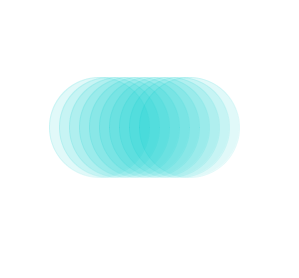
Same as 6 above but with no outline. We set the fill and outline color to the same value to accomplish that.
fill 0 200 200 30
stroke 0 200 200 30
thickness 1
repeat 10
circle 100
penup
forward 10
pendown
end