
Gadget 0.1
The first version of Gadget uses a simple set of commands that will permit an artist to
create a digital image to their specifications. It is a bit like a programming language,
in that is uses text to specify the algorithm, but it lacks a complex syntax. Each individual
line of text accomplishes one operation.
To create an artwork, one types a set of commoands into a text file and then passes that
file to the Gadget system, which will read the file and follow the instructions. Fisrt,
double click on the Gadget program, names Gadget2024.exe, to start executing it. The Gadget
program will ask for the text file containing the commands:
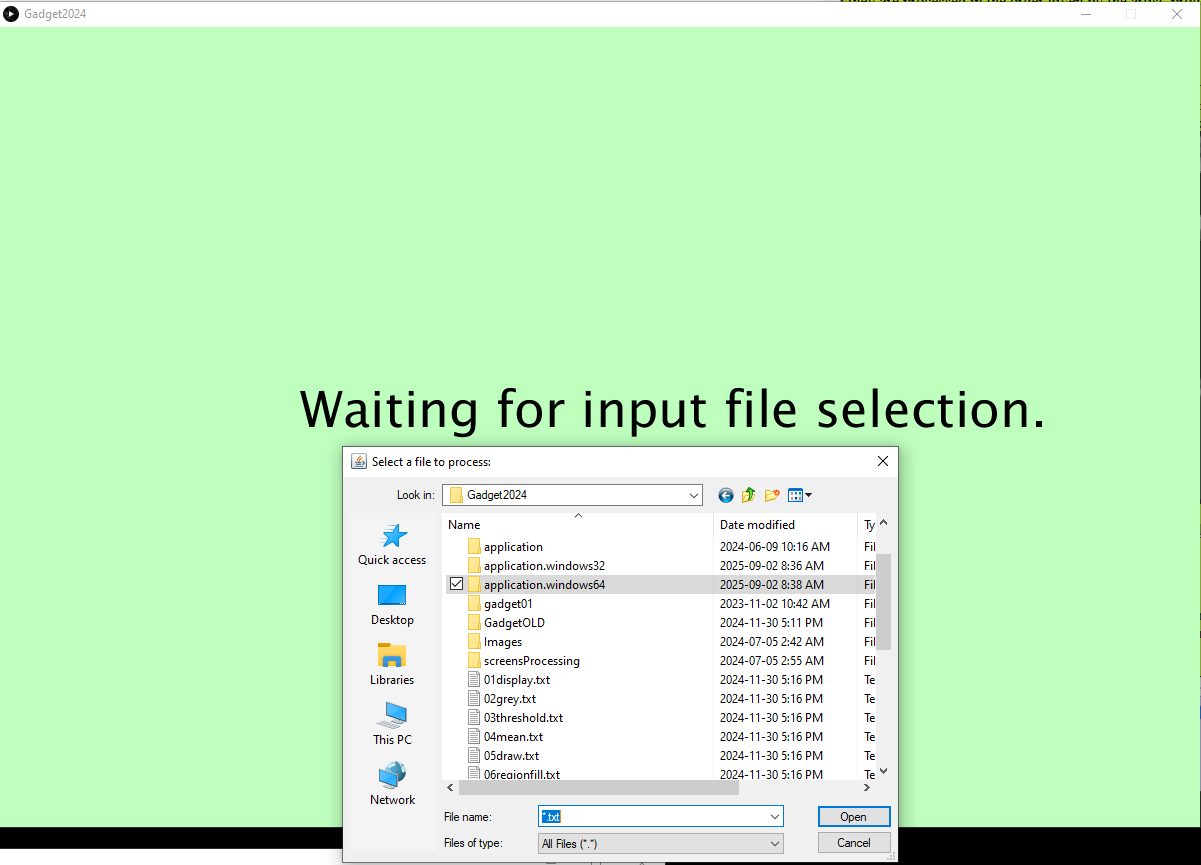
Double click on the text file you wish to execute. As an example, let's click on the file
"03threshold.txt". The file will be opened and the text will be shown on the left side of the
window, and the drawing area or canvas where the result will be displayed is on the
right side of the window:
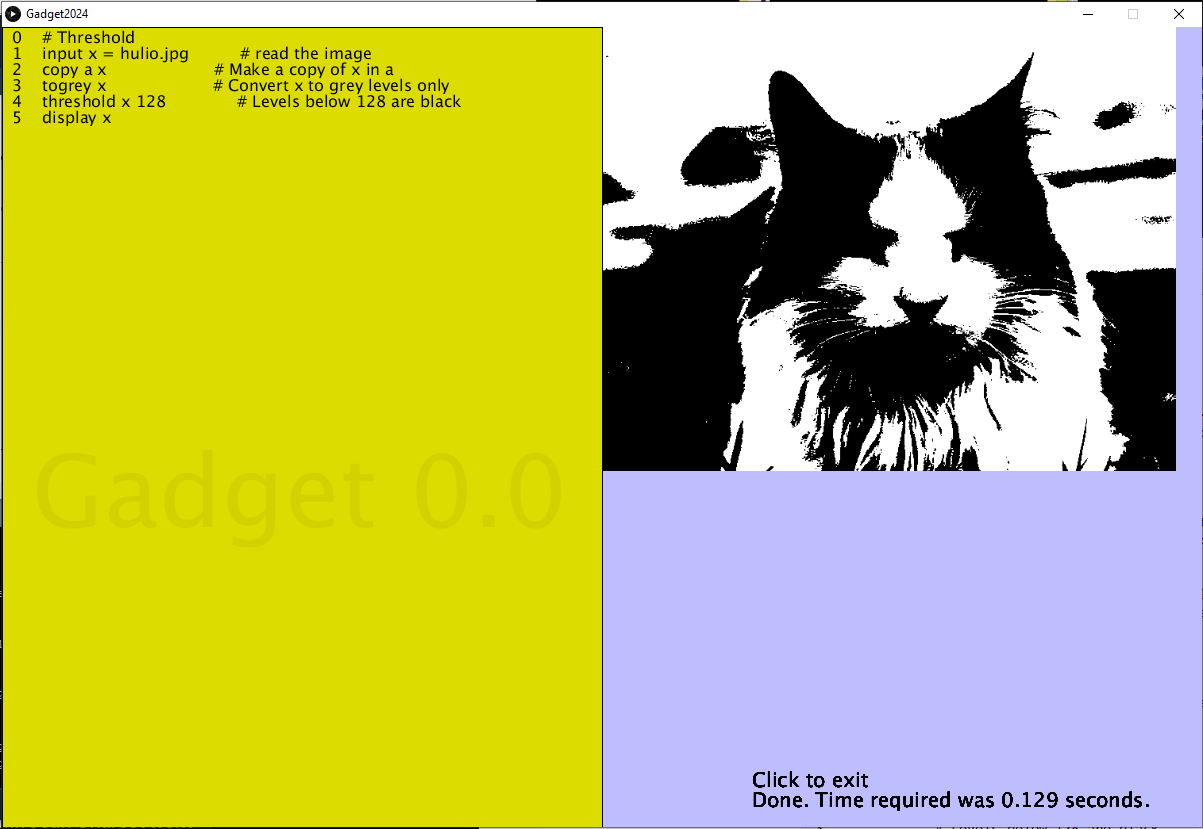
The image shown on the right is the result of the script that appears on the left. In this
case the script has 5 lines:
# Threshold
input x = hulio.jpg          # read the image
copy a x                     # Make a copy of x in a
togrey x                     # Convert x to grey levels only
threshold x 128              # Levels below 128 are black
display x
The first line is simply a comment for any human reader, indicating the purpose of this script.
Any text in this file that follows a '#' character will be ignored by Gadget.
The second line is
input x = hulio.jpg # read the image
and looks for an image file named "hulio.jpg" and reads it into a variable named x.
Any time the name x is referred to in this scripy it will reference this specific image.
The third line is
copy a x # Make a copy of x in a
This makes a copy of the image we just read into x, and assigns it to the variable a.
Now we have two copies.
The next command is
togrey x # Convert x to grey levels only
which converts the color image in x in one that has only grey values. We don't see any
result because we don't ask for x to be displayed.
The next command is
threshold x 128 # Levels below 128 are black
which changes all pixels in the image x to be black if the value is less than 128,
and to white otherwise. Grey pixels can have values between 0 and 255, where 0 is black and 255
is white.
The final command is
display x
which displays the image x in the canvas region.
The process of creating a genberative work is to make a text file of the commands needed to draw
the desired work, save it, and then run Gadget, loading this file at the inital step. Obviously you
will wish to save the image, and learn more about what Gadget can do. Let's look at each of the
possible commands, in alphabetical order.
Gadget Commands
all x
Repeat a set of commands for all pixels in the image.
Example:
all
  get x
  print  red(x)
end
assign x y
Assigns the value of y to variable x. Y will be the same kind of thing that x is, so if y
is an image then x will be an image, if y is a number then x will be a number. This essentially
makes a copy of y in x.
background r g b a
Set background color of an image. The values of r,g, and b are the red, green, and blue
components of this color. ‘a’ is optional and gives the transparency of this color, where 0 is
completely transparent and 255 is completely opaque. If we use the command:
background 255 0 0
then the backgound color will be red, for example. (0,0,0) os black and (255,255,255) is white.
block
Execute a sequence of commands until end. This is usually part of some other command, such
as a when command.
camera a
Read an image from a local webcam and save it as an image in the variable a
close a
Morphological CLOSE operation on image a by 1 layer.
close a n
Morphological CLOSE operation on image a by n layers.
colorize x
Modify the hues in image x according to a table.
contrast a min max
Change values of image a to be in the range min .. max.
copy x y
Copy image y to x.
dilate a
Morphological DILATE of image a by 1 layers.
dilate a n
Morphological DILATE of image a by n layers.
display x
display the image in x.
edgesobel x
Find Sobel edges in image x.
edgelaplace x
Find Laplacian edges in image x.
ellipse x i j w h
Draw an ellipse centred at i,j width w height h.
end
Ends a loop, block, or an all group of commands.
equalize a
Equalize the brightness levels in the image a.
erode a
Morphological ERODE of image a by 1 layer.
erode a n
Morphological ERODE of image a by n layers.
exit n
Exit to statement n. I am unhappy about this because it's essentially
a GOTO statement, but I plan to fix it later. Statement n must be an
END statement though.
fillcolor r g b
Set the colour for filling closed shapes to (r,g,b)
get x
Inside of an all command sequence: get the current pixel value into x.
get c y i j
Get pixel i,j in image y into color variable c.
get x y i j w h
Get sub image of image y from i,j to i+w,j+h into image x.
huesample x n
Reduce the number of hues to N.
imageadd a b
Do a = a + b, as images, pixel by pixel.
imagesubtract a b
Do a = a - b, as images, pixel by pixel.
input x = filename
Read the image file save it in x.
input x
A file dialog box will be opened and you can select an image to be read into x.
line x a b c d
Draw a line in image x from (a,b) to (c, d).
linecolor r g b
Set the color for drawing lines to r, g, b.
lineweight n
Set line thickness to n pixels.
loop
Repeat a sequence of code forever, or until an exit.
loop n
Repeat some code n times or until an exit.
mean m x
Find the mean value of all pixels in the image x. Grey.
meanfilter n
nxn mean filter. Replace all pixels by mean of an nxn region.
medianfilter n
nxn median filter. Replace all pixels by median of an nxn region.
measure x y NAME
Make a measurement of an image y and assign to x.
NAME = mean or
NAME = width or
NAME = height
negative x
Reverse the pixel levels in image x.
new x w h
Create a new 'empty' image wxh pixels, assign to x.
noise a pa p2
Perlin noise.
open a
Morphological OPEN on image a by 1 layers.
open a n
Morphological OPEN on image a by n layers.
print x
Print the value of x to the console.
rect x a b w h
Draw a rectangle from (a,b) width w height h.
region x y i j w h
Extract a rectangular region from y at (i,j) for (w,h) to x
regionfill x i j r g b
- Fill a region (one color) of an image with color c starting at (i,j)
replace y x i j
- Place the image x at location i,j in the image y
resize x n m
- Change the size of image x to nxm pixels.
rotate x a
- Rotate image x by angle a (degrees) counterclockwise about the centre.
save x name
Save the image x in a file withe the given name.
set c
Inside of an all sequence: set the current pixel value from color c.
set x i j c
Set pixel (i,j) of image x to color c.
speed n
Indicate execution speed; 1 is slowest, 30 is fastest.
threshold x t
Threshold the image x using threshold t.
triangle z x1 y1 x2 y2 x3 y3
Draw a triangle in image z using the three vertices given.
tocolor c r g b
Creates a color value c from r, g, b components.
togrey x
Converts image x to a grey level image by averaging r, g, and b.
valuesample x
XXX N - Resamples a colour channel of image x into N bins.
XXX is one of: RED, GREEN, BLUE, HUE, SATURATION, INTENSITY
variable x y
Assign a value to a variable.
when a op b
Execute a code sequence until end when a relationship is true.
The 'op' represents the relationship to be tested, and can be one of < <= > >= == <>.
Gadget expressions
Expressions: Must be enclosed in [ and ].
So [100/10 + 1] is 11
Can use variables,
[x/2+y/2+(a+b+c)]
Builtin variables:
ROW = current row
COLUMN = current column
PIXEL = current pixel value
HUE, SATURATION, BRIGHTNESS, RED, GREEN. BLUE
PIXEL.RED, PIXEL.GREEN, PIXEL.BLUE
Functions:
random(v1) - a random number between 0.0 and 1.0
red((int)v1) - The red component of the color v1
green((int)v1)- The green component of the color v1
blue((int)v1)- The blue component of the color v1
hue((int)v1)- The hue component of the color v1
saturation((int)v1)- The saturation component of the color v1
brightness((int)v1)- The brightness component of the color v1
sqrt(v1)- The square root of the number v1
sin(v1) - The trigonomentric sine of the angle v1
cos(v1) - The trigonomentric cosine of the angle v1
tan(v1) - The trigonomentric tangent of the angle v1
randomGaussian() - A random number following the normal distribution, mean 0 standard deviation 1.
alpha((int)v1) - The transparency of the color v1
day() - The day today
hour() - The current hour
millis()
minute()
month() - The current month
second() - The current second
year() - The current year
abs(v1) - The absolute value of v1
exp(v1) - e to the power v1.
log(v1) - Logarithm of v1
acos(v1) - Inverse trigonometric cosine of v1
asin(v1) - Inverse trigonometric sine of v1
atan(v1) - Inverse trigonometric tangent of v1
radians(v1) - The value of v1 in radians, assuming it is in degrees
degrees(v1)- The value of v1 in degrees, assuming it is in radians
width(im) - The width of the image im in pixels.
height(im) - The height of the image im in pixels.
Examples
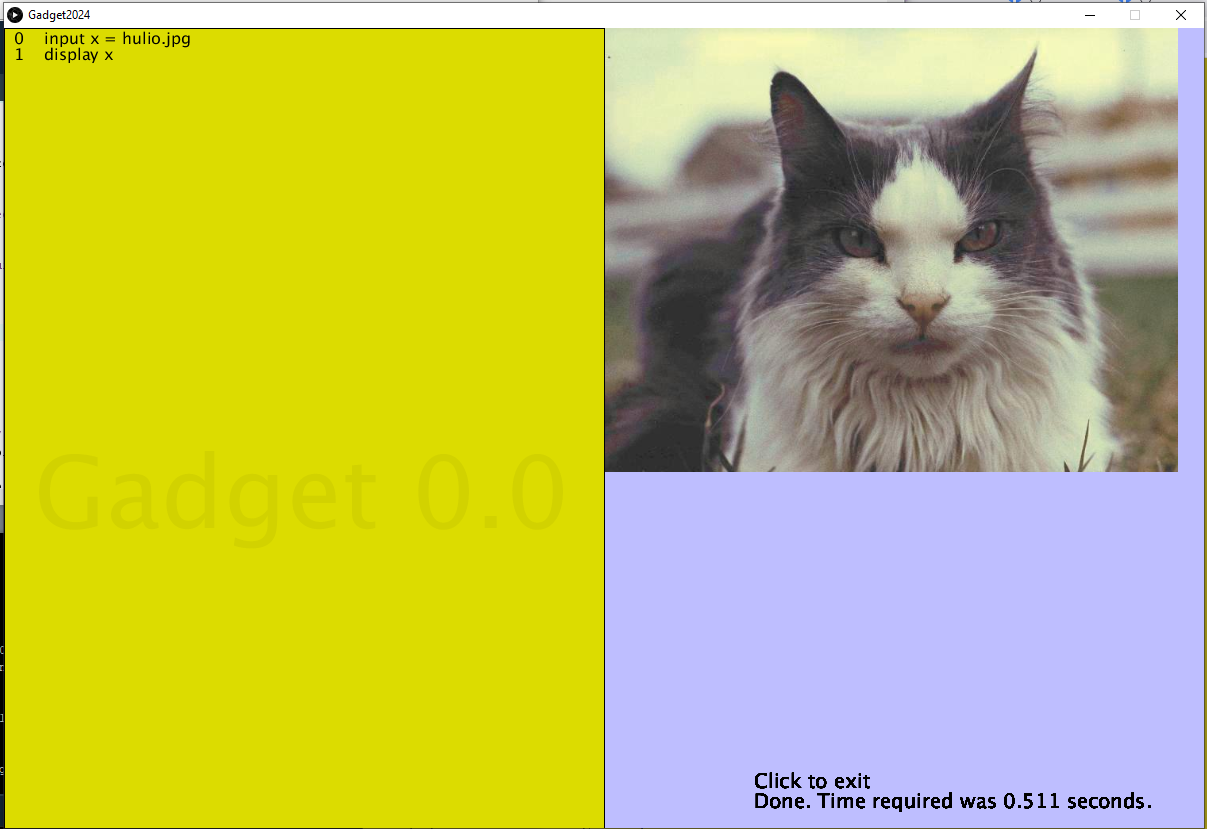
Example 1 - Display
Uses: input, display
A script that will read and display the image "hulio.jpg".
input x = image.jpg
display x
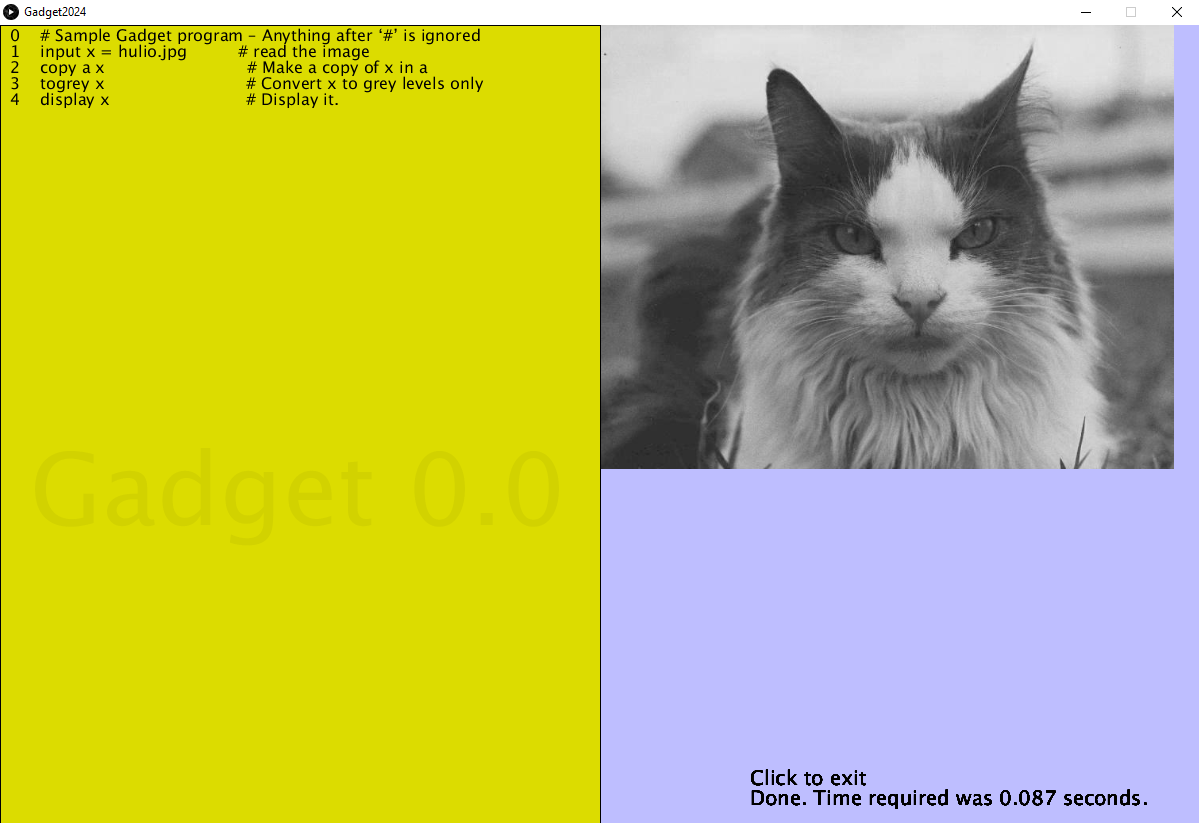
Example 2 - Convert to grey levels
Uses: input, copy, togrey, display
Convert the color image "hulio.jpg" into greys, removing colors.
# Sample Gadget program - Anything after '#' is ignored
input x = hulio.jpg          # read the image
copy a x                            # Make a copy of x in a
togrey x                            # Convert x to grey levels only
display x                           # Display it.
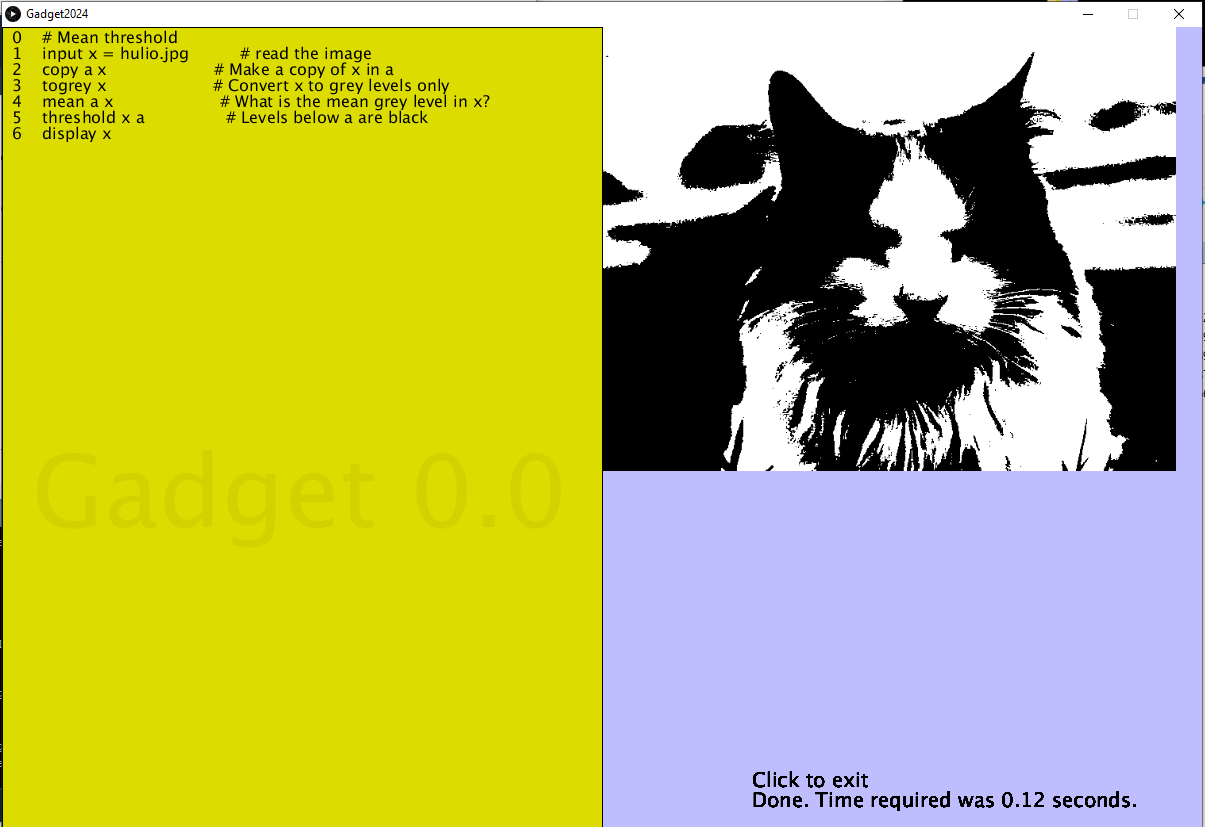
Example 3 - Threshold using the mean value
Uses: input, copy, togrey, mean, threshold, display
Read "hulio.jpg", convert to grey, and find the mean value of the grey levels.
Use this to threshold the image.
# Mean threshold
input x = hulio.jpg          # read the image
copy a x                     # Make a copy of x in a
togrey x                     # Convert x to grey levels only
mean a x                     # What is the mean grey level in x?
threshold x [a]              # Levels below a are black
display x
Example 4 - Draw an ellipse
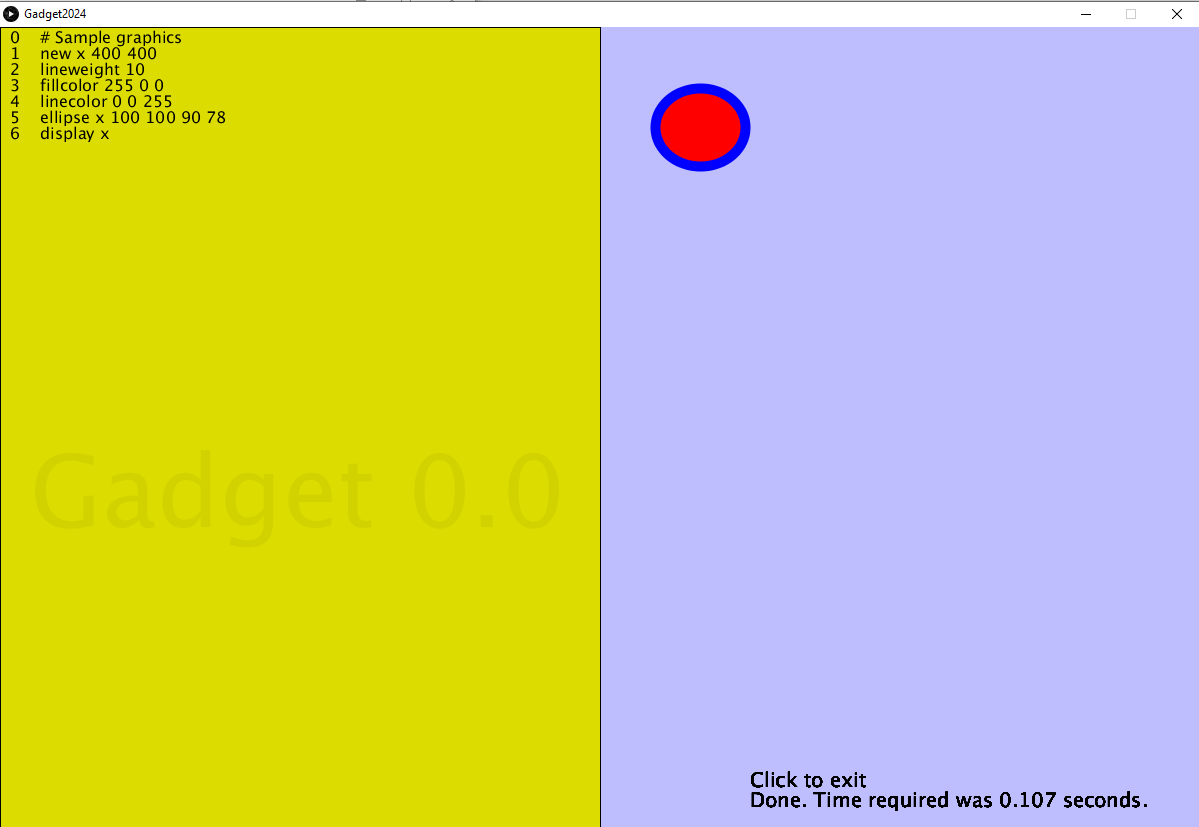
Uses: new, lineweight, fillcolor, linecolor, ellipse, display
Create a new image that is 400x400 pixels and draw an ellipse with a red outline 10 pixels thick.
Fill with blue. Note that we must create an image in which to draw.
# Sample graphics
new x 400 400
lineweight 10
fillcolor 255 0 0
linecolor 0 0 255
ellipse x 100 100 90 78
display x
Example 5 - Fill
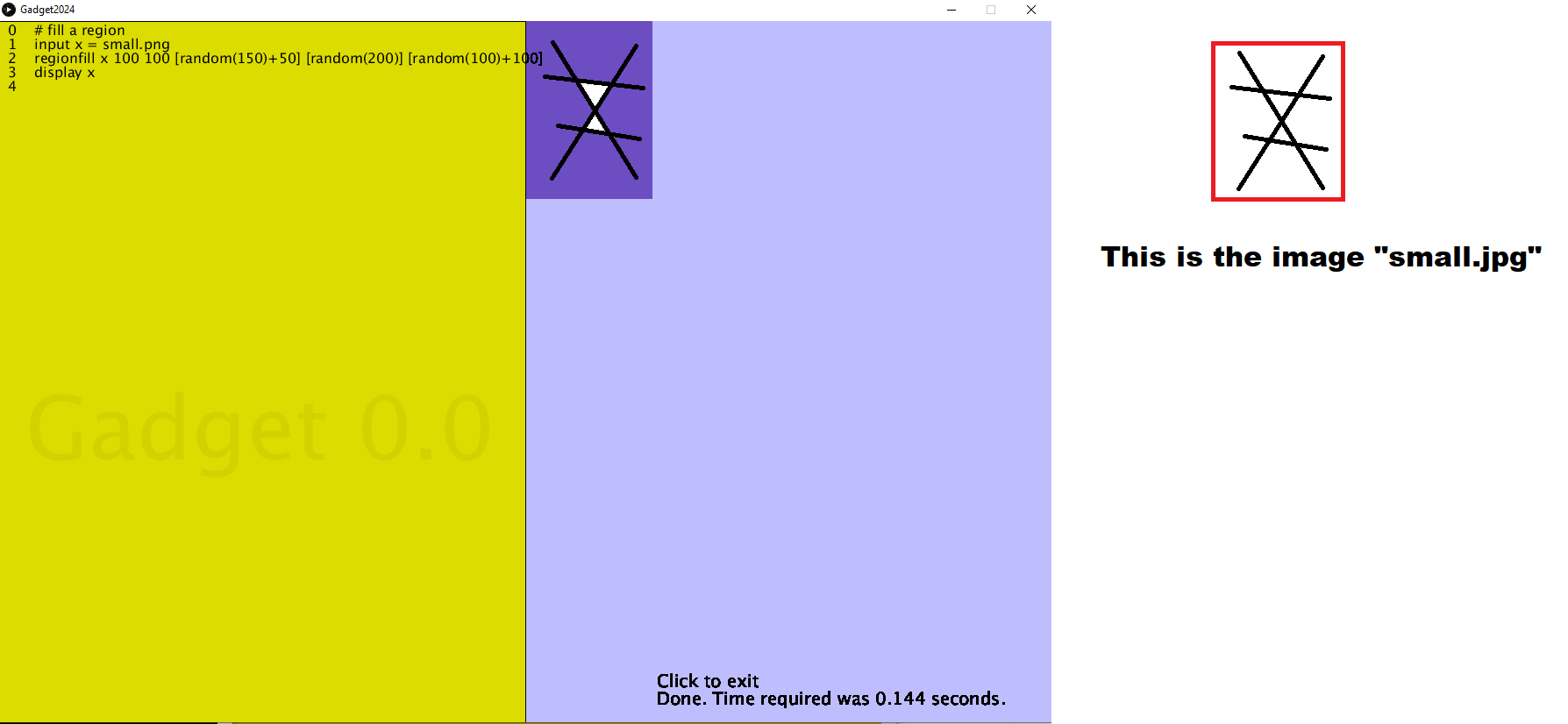
Uses: input, regionfill, random, display
Fill a region in an image starting at (100,100) with a random rgb color.
# fill a region
input x = small.png
regionfill x 100 100 [random(150)+50] [random(200)] [random(100)+100]
display x
Example 6 - Set all pixels
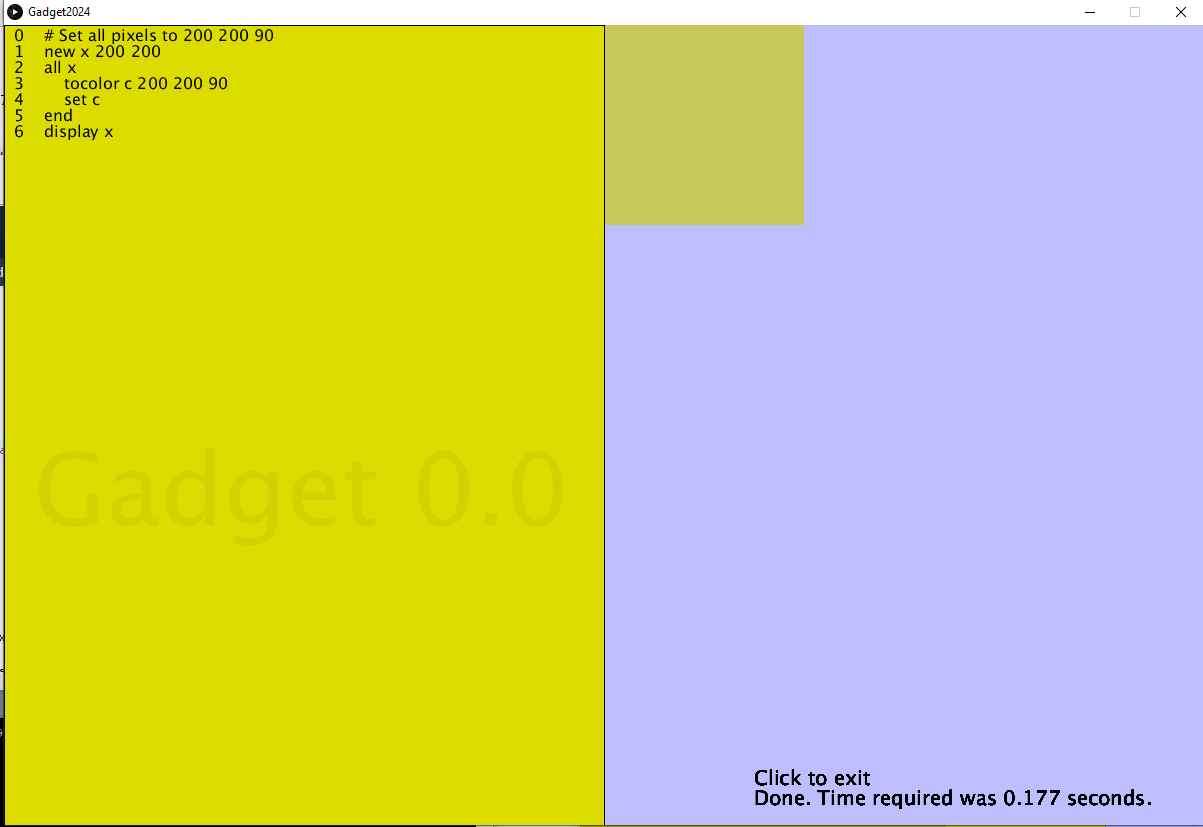
Uses: new, all, tocolor, set, end, display
This script sets all of the pixels in a new image that is 200x200 pixels in size
to the rgb color (200,200,90). It uses all to do the same thing to all
pixels in x: make a color c = (200,200,90) and set each pixel to that color.
# Set all pixels to 200 200 90
new x 200 200
all x
    tocolor c 200 200 90
    set c
end
display x
Example 7 - Set all pixels again
Uses: new, all, tocolor, set, end, red, ROW, COLUMN, display
This script is the same as Example 6, except that the value of the color c is set
before all to show that it will stay the same if we do that. Setting it inside of
all ... end take more time, since it gets done for each pixel.
# Set all pixels to 200 200 90
new x 200 200
tocolor c 200 200 90
all x
    set c
end
display x
The output is the same as for Example 6.
Example 8 - when
Uses: new, all, tocolor, set, end, red, ROW, COLUMN, display
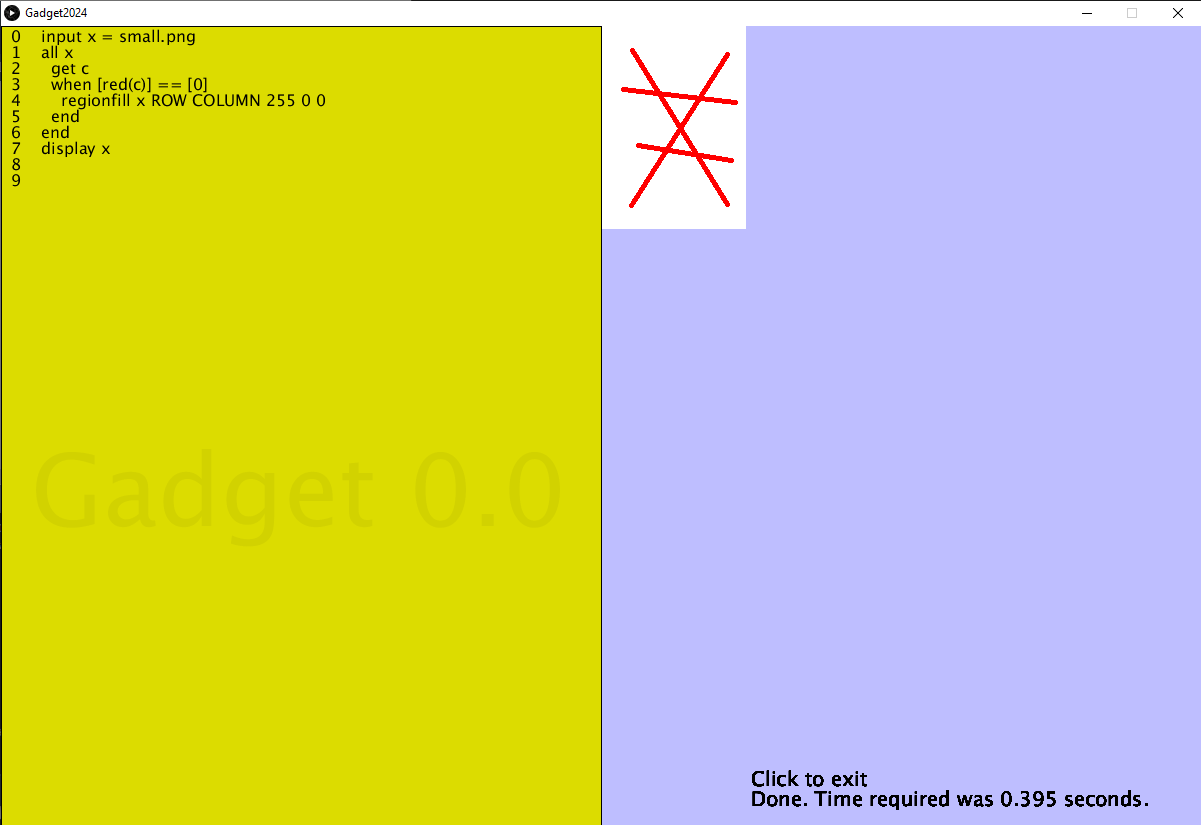
Start with the image "small.jpg" seen in example 5. Look at all pixels, and when one is found
having a red value of 0 use this as the starting point to fill a region. In other words, change all
of the black pixels to red ones.
input x = small.png
all x
  get c
  when [red(c)] == [0]
    regionfill x ROW COLUMN 255 0 0
  end
end
display x
Example 9 - Artwork, watercolor
Uses: input, loop, assign, random, lineweight, get, linecolor, line, width, height, display
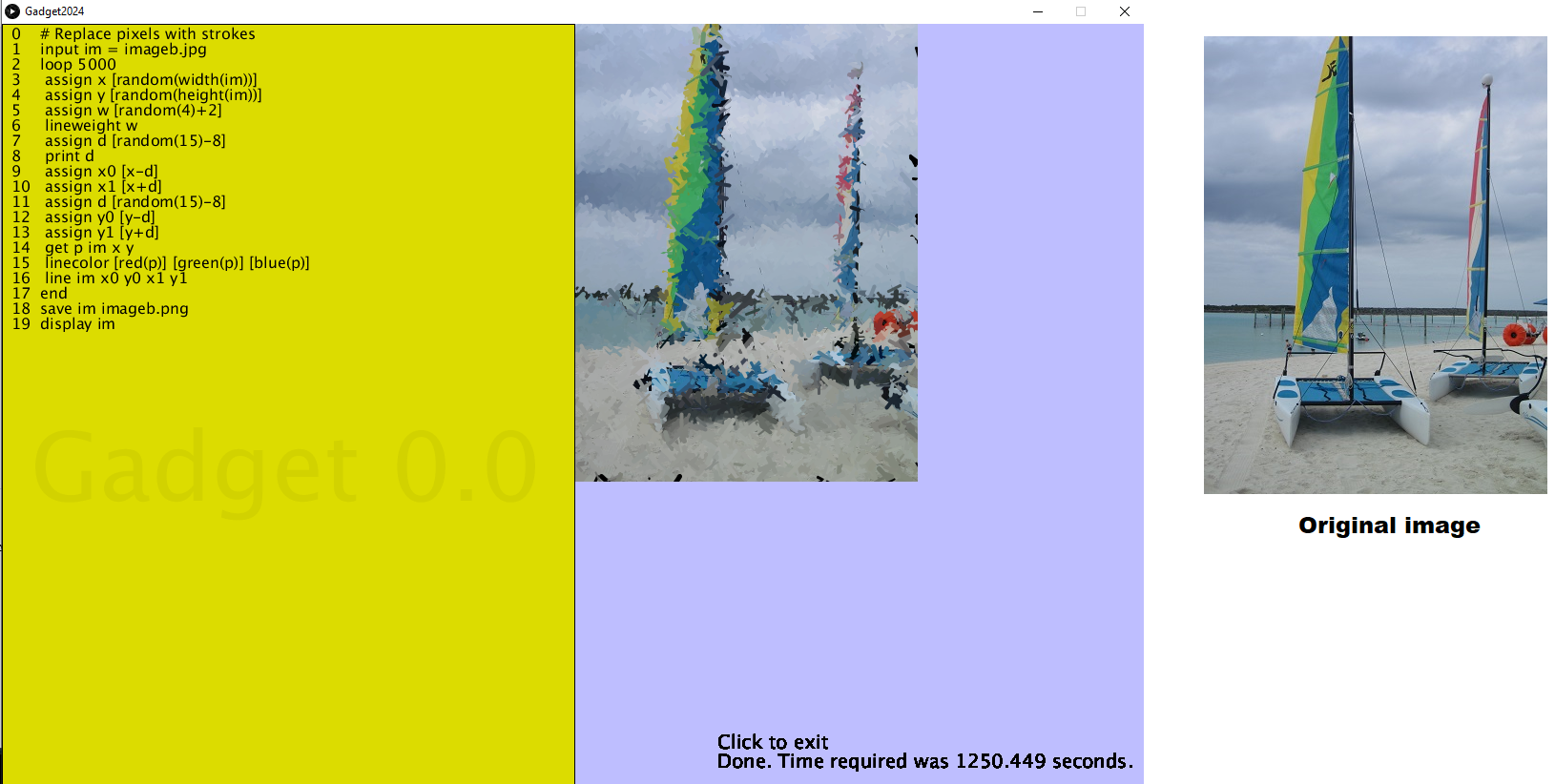
Start with the image "hulio.jpg". Create a second image v the same size.Look at 5000 random pixels and draw a stroke at that location
having a random thickness and using the color from the original pixel color. This will give
the impression of brush strokes.
# Replace pixels with strokes
input im = wc2.jpg
loop 5000                          # 5000 pixels
 assign x [random(width(im))]      # random pixel location, x
 assign y [random(height(im))]     # random pixel location, y
 assign w [random(4)+2]            # Random width between 4 and 6
 lineweight w
 assign d [random(15)-8]           # Position variation between -7 and +7
 assign x0 [x-d]                   # Line start is (x0,y0)
 assign x1 [x+d]
 assign d [random(15)-8]           # Position variation between -7 and +7
 assign y0 [y-d]                   # Line end is (x1,y1)
 assign y1 [y+d]
 get p im x y                      # Get the color at location (x,y)
 linecolor [red(p)] [green(p)] [blue(p)]
 line im x0 y0 x1 y1               # Draw a line
end
display im
Example 9 - Artwork, shading
Uses: input, new, all, line, random, assign, mean , COLUMN, ROW, togrey, display
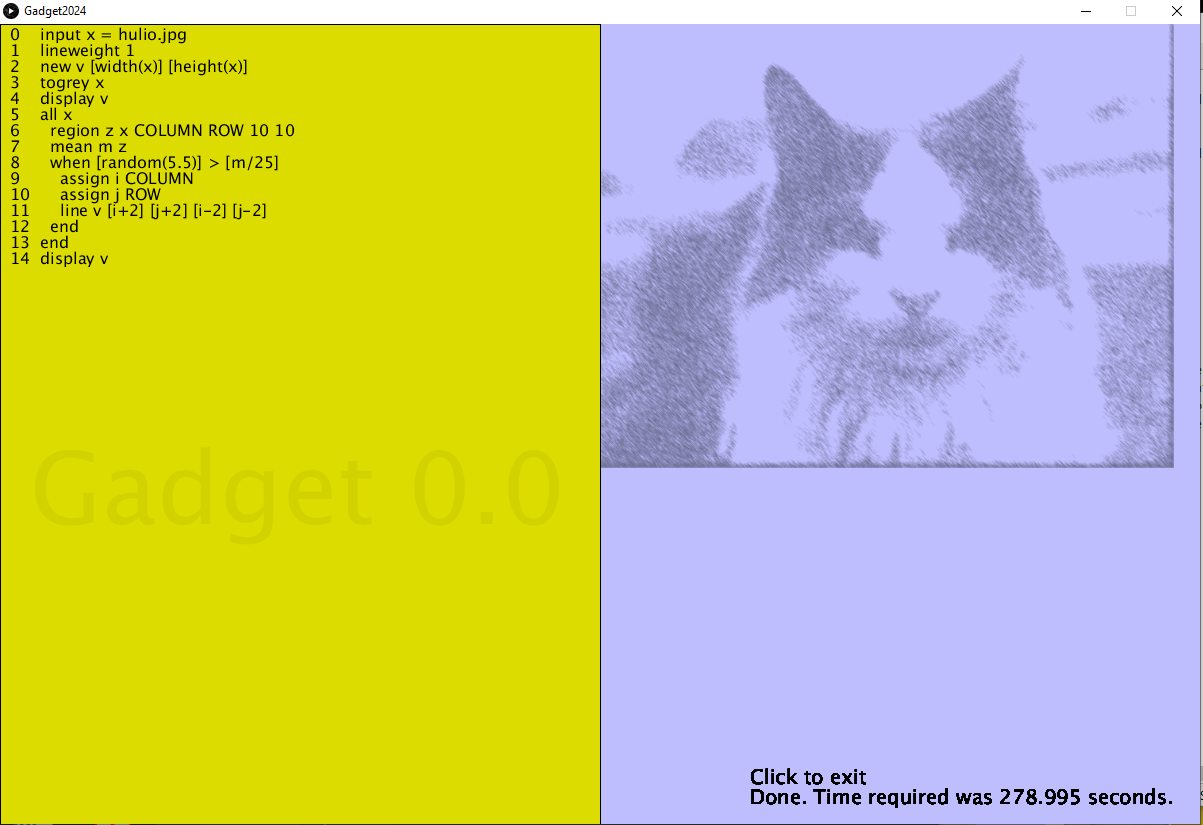
Shade with diagonal lines. Read image x as "hulio.jpg" and create an image v the same size.
For each pixel in x compute the mean of a 10x10 region at that location. In specific circumstances
(random (5.5) > average/25, draw a diagonal line centered at that pixel.
input x = hulio.jpg
new v [width(x)] [height(x)]
togrey x
all x
  region z x COLUMN ROW 10 10
  mean m z
  when [random(5.5)] > [m/25]
    assign i COLUMN
    assign j ROW
    line v [i+2] [j+2] [i-2] [j-2]
  end
end
display v
Example 10 - Artwork, patches
Uses: new, background, assign, random, loop, when, fillcolor, rect, display
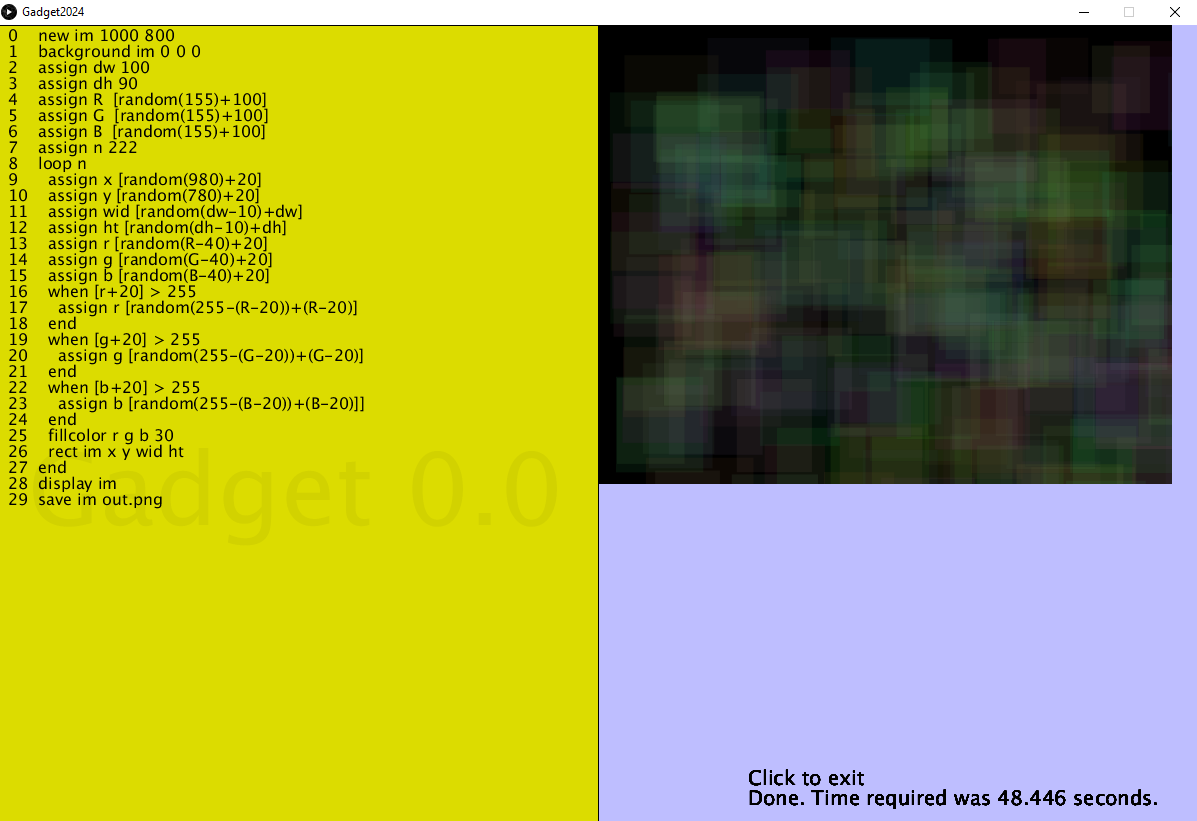
Use color patches (rectangles) of random related colors placed at random locations and having random sizes to
create an artwork.
new im 1000 800               # The empty canvas
background im 0 0 0           # Black background
assign dw 100                 # Base width or rectangle
assign dh 90                  # Base height
assign R  [random(155)+100]   # Random (r,g,b) between (155,155,155)
assign G  [random(155)+100]   #  and (255,255,255)
assign B  [random(155)+100]
assign n 222                  # Create 222 rectangles
loop n
  assign x [random(980)+20]   # Random position in the image.
  assign y [random(780)+20]
  assign wid [random(dw-10)+dw] # Random width based on dw
  assign ht [random(dh-10)+dh]  # Random height based on dh
  assign r [random(R-40)+20]    # Random variation on the (R,G,B) given
  assign g [random(G-40)+20]
  assign b [random(B-40)+20]
  when [R+20] > 255             # If any color component exceeds 255, modify it
    assign r [random(255-(R-20))+(R-20)]
  end
  when [R+20] > 255
    assign r [random(255-(R-20))+(R-20)]
  end
  when [G+20] > 255
    assign g [random(255-(G-20))+(G-20)]
  end
  when [B+20] > 255
    assign b [random(255-(B-20))+(B-20)]]
  end
  fillcolor r g b 30          # Fill with the selected RGB color
  rect im x y wid ht          # Draw the rectangle
end
display im
save im out.png
Example 11 - Color changer
Uses: new, all, when, PIXEL, tocolor, set, display
Change the colors in an image. If any pixel is more green than red or blue, make it completely green.
If more red and than green or blue, make it completely red.. And if more blue than green or red, make it blue.
create an artwork.
input x = imageb.jpg
display x
all x                                    #For every pixel
  when PIXEL.GREEN >= PIXEL.RED          # if green is the largest color component
    when PIXEL.GREEN >= PIXEL.BLUE
      tocolor c 0 255 0
      set c                              # set this pixel to full green
    end
  end
  when PIXEL.RED >= PIXEL.GREEN          # if red is the largest color component
    when PIXEL.RED >= PIXEL.BLUE
      tocolor c 255 0 0
      set c                              # set this pixel to full red
    end
  end
  when PIXEL.BLUE >= PIXEL.RED
    when PIXEL.BLUE >= PIXEL.GREEN
      tocolor c 0 0 255
      set c
    end
  end
end
display x
